Turn a talking-head clip into a paper collage, a retro desktop, or a liquid glass animation with Opus 5.5. Download the exact editing skills and the five-prompt pack to make all three looks on your own footage.
Download my three Claude skills and prompt pack
Pick paper collage, retro desktop, or liquid glass for your clip. One signup unlocks all three ZIPs and the five prompts I use to build and test a skill.
Try a Claude editing skill on one line of dialogue
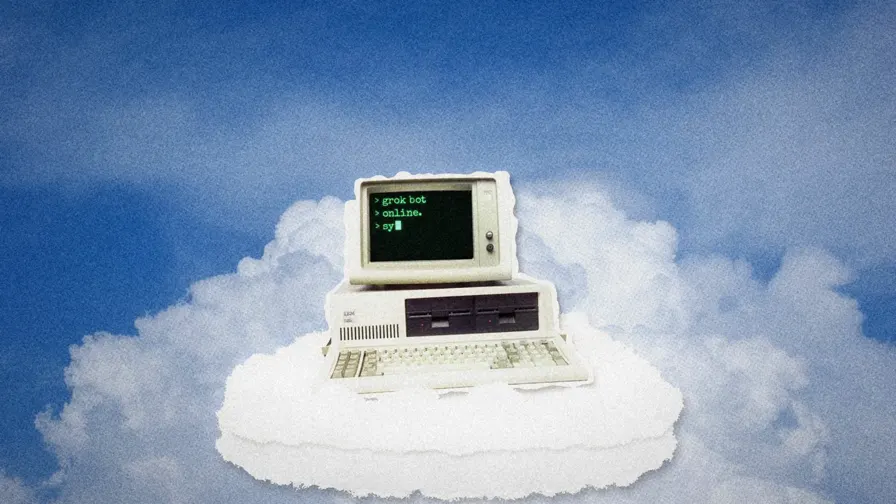
Take ten seconds of a video where you’re explaining something on camera. My coworker CJ had a line about a computer running in the cloud. I wanted an actual beige computer sitting on a paper cloud. If you have a line like that, start there.
Download a skill above. In Claude, open Customize → Skills, click +, then Create skill → Upload a skill. Upload the ZIP as it came, switch it on, and attach your clip in a fresh chat. Replace [SKILL] with the one you picked. Claude’s skill upload guide
Use [SKILL] on this clip. Pick one line that would be easier to explain with a picture. Quote the line and show me a still of the graphic over my footage. Let me give you notes before you animate it.
That still is your storyboard. Freeze it on the word that cues the graphic. Can you see the speaker’s face? Is there room on the side they’re looking toward? You can settle both questions while you’re still looking at one frame. Once it looks right, tell Claude, “Bring the graphic in when I say [cue words]. Export an MP4 and keep my original audio.”
Editing locally? The ZIPs include an editable scene and a render script for a 1920 × 1080 constant-frame-rate SDR clip. The scripts use Python, FFmpeg, NumPy, Pillow, and OpenCV. Set the cue to the word you want to illustrate, play it with the sound on, and check that the graphic leaves your face clear.
How I get Claude Motion to match my editing style
My first prompt asked Opus 5.5 for a 15-second YouTube intro in a “slick modern style.” I got dots orbiting a bigger dot. Fair enough. That’s about as much direction as I gave it. To try it, pick Output → Motion in Claude, give it your video title, then click the text in the preview to change the words, color, or timing. Claude Motion setup and availability
I had a collage reference saved because I liked the way a cutout popped into frame. That was a much better brief. I gave Claude the reference, pointed to that entrance, and asked it to find 15 to 20 more examples. You can start with two screenshots or links from Pinterest, Instagram, or YouTube. Tell Claude what you like about each one. A torn edge, a typeface, or the few frames it takes a cutout to settle gives it something to look for.
I kept the collage board to one look. Then I asked Claude to turn it into a style kit with the reference stills, reusable cutouts, animation code, and a STYLE.md file describing the type, texture, and movement. The third prompt in the pack does this part.
I test the kit on a 15-second intro and a lower third, the little name graphic that goes beside a speaker. An intro has the whole screen to play with. Shrink the same type and paper texture down next to somebody’s face and you’ll find out pretty quickly whether you can read their name. I have Claude show me both before I save the kit to my Claude Project. In Claude Code, I keep it in the folder I’m editing from.
Turn the edit you approved into a reusable Claude skill
After CJ’s edit, I had the kit, a render I liked, and a chat full of notes about how we got there. I wanted to open a new chat with my footage and skip that conversation.
I asked Claude to write a SKILL.md from the approved edit and my notes. The eyeline fix is a good example of what belongs in it. “Move the graphic to the right” works exactly once. “Check which way the speaker is looking before you place the graphic” is a note I want on the next video too. I also asked it to stop for storyboard approval before rendering.
In the chat where you approved your edit, paste prompt 4 from the pack. It asks Claude to package the instructions, assets, and scripts as an uploadable skill ZIP. Enable that ZIP, start a fresh chat, and run prompt 5 on a clip with a different speaker. Where does the first graphic land? That’s how I checked the collage look on my own footage after CJ’s edit.
I used Higgsfield to make the CRT computer and Epidemic Sound for effects on CJ’s clip. If you already have an image and sound you like, give Claude those files. The downloadable starters run locally.
What changes when you run three skills on the same clip?
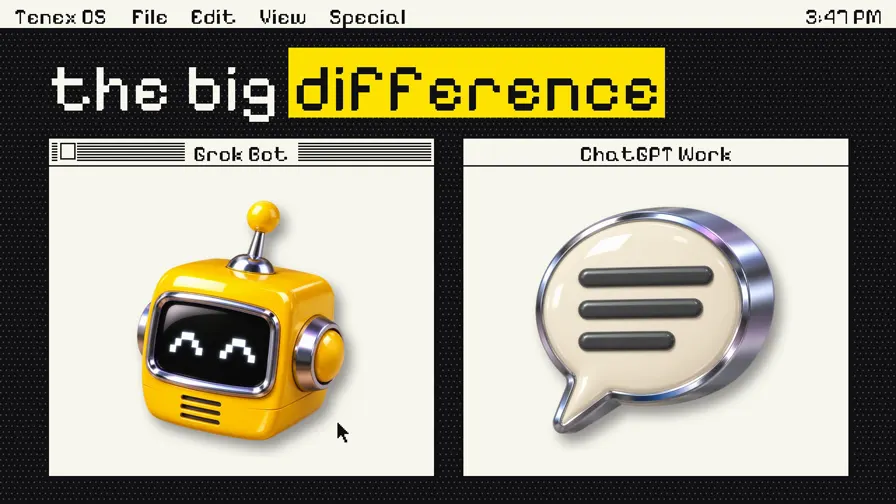
Here’s CJ explaining the same thing again. In the retro desktop version, Grok Bot and ChatGPT Work get their own windows. I can see the comparison before I’ve finished reading either label.
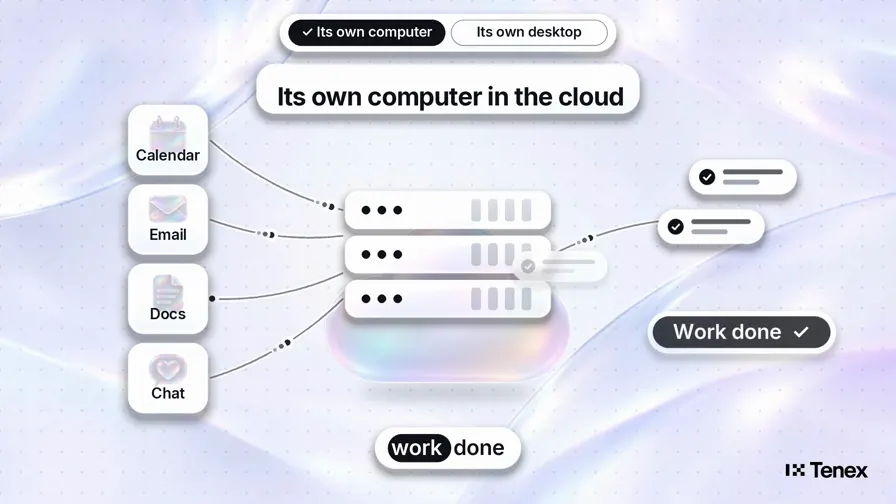
The liquid glass version does a different job. Follow the lines from Calendar, Email, Docs, and Chat on the left. They all feed into the cloud computer. If the point of your line is how four things connect, this is the one I’d try first.
How I rendered six video sections in parallel
Once the skill worked on fresh footage, I put six sections of a longer edit in Frame.io. In Amp, I gave each section its own cloud computer (an orb), a copy of the skill, and the brief. Six storyboards came back. I could ask for a change on one while the other five were ready to render.
That run took me about 30 minutes. The orb rental was $7.21, with model API usage billed separately. For CJ’s line about a computer in the cloud, I’d keep the paper version. The little beige computer explains the line before he finishes saying it. To pick a look for your video, give two skills the same clip and the same cue word, then play the edits back to back. Get the three skills and five prompts