Access

Show, Then Tell: How High-Fidelity Prototypes Collapse Product Alignment

By clicking submit, you agree to receive marketing emails, event reminders, and our flagship Ultrathink newsletter.
Thank you.
Oops! Something went wrong while submitting the form.

Show, Then Tell: How High-Fidelity Prototypes Collapse Product Alignment

A practical guide to replacing PRDs with working prototypes using AI tools like Bolt and Lovable.

Subscribe to the

ultrathink

Newsletter

By submitting this form, you agree to receive recurring marketing communications from Tenex at the email you provide. 
To opt out, click unsubscribe at the bottom of our emails.
Thank you.
Oops! Something went wrong while submitting the form.

The Human

Bolt almost didn't happen. StackBlitz had spent years building developer tools without finding traction. Runway was tight. Bolt wasn't a moonshot—it was a last disciplined attempt before winding down. Then it launched. People used it immediately. What started as a survival play became the company's lifeline.

Alex Berger, COO of Bolt (or Bolt.new as the lame man says), operates with a bias toward velocity over explanation. His philosophy is simple: teams slow down when ideas spend too long in docs instead of user hands. Bolt was built quickly, shipped quickly, and refined in public. The product reflects the operating rhythm.

Here's how concrete that gets. Alex rents apartments through Airbnb and ran into a frustrating edge case with their long-term rental tax logic. Instead of writing a critique or drafting a PRD, he built a prototype that showed what better could look like.

That single move captures the mindset: prototype the change, test it live, and let the experience speak. It's the same approach that saved StackBlitz and now defines how Bolt ships. The fastest way to prove an idea isn't to argue for it. It's to let people click, see, and feel it working.

The Loop

Remember show-and-tell in third grade? You didn't write an essay about your rock collection. You brought in the rocks. You passed them around. Everyone was like, "Damn, Jake has some sick ass rocks. He's my new best friend."

Somehow, we forgot that lesson the moment we started our careers.

Now, you hardly ever show off your rocks. You just explain them to people and nobody cares.

Put smartly: when you want something—like a product feature or button—you're killing momentum before the work even starts...

  • You want to ship a new feature, so you write a document describing intent
  • Then you get someone to make mockups that only approximate the behavior
  • Then you schedule a meeting to reconcile interpretations
  • Every step introduces translation. Every translation degrades signal
  • By the time something reaches engineering, the idea's been rebuilt twice—once in words, once in pixels—and nobody's sure it's still the same thing

Here's the new loop:

  1. Pick a screen
  2. Be the bone snatcher
  3. Mirror it
  4. Add the thing
  5. Send the link + shut up

The Use Cases

This loop is for people who already have good ideas but feel blocked by process, politics, or permission.

  • Product managers who need leadership buy-in before roadmaps shift or resources move. When a PRD stalls, the prototype becomes the argument.
  • Founders and internal operators pitching new bets inside existing organizations. Showing a working slice beats selling a vision deck every time.
  • Agencies aligning clients before scope hardens. Letting clients click through direction prevents weeks of misinterpretation and revision churn.
  • Product and design leaders pressure-testing concepts without pulling engineering into the room too early. Alignment happens before commitment.

"First step, you need to have an idea. If you're a product manager, a designer, an entrepreneurial person—I think you already have one." 
— Alex Berger

01. Pick a screen

Before you open any tool, you need to have an idea.

Once you have that, you need to know exactly which screen you're prototyping against.

Log into the actual product—yours, your company's, whatever you're trying to improve. Navigate to the specific modal, page, or component that frustrates you. This is your canvas.

Alex picked a tax breakdown modal inside his Airbnb hosting account. He wasn't trying to rebuild Airbnb's entire billing system. He wanted to change how one modal handled tax withholdings for long-term rentals. That's it.

Do this:

  1. Open your product in Chrome (has to be Chrome for the next steps)
  2. Navigate to the exact screen you want to change
  3. If it's a modal, trigger it so it's visible on screen
  4. Ask yourself: "What's the one thing I wish this did differently?"

The smaller the surface area, the faster you ship. This playbook isn't about building new products from scratch—it's about prototyping small changes that can make big differences. You're not parading as the company's designer. You're a PM, founder, or operator with an idea, and you want to show people what "better" looks like before anyone commits resources. Pick the one modal, one card, one button that matters most.

"Screenshots are great to capture styles, but we have access to the code here. Which is better in a lot of ways. 
— Alex Berger

02. Snatch the bones

Screenshots show what it looks like. Code shows how it's built. Grab both.

Most people would just screenshot the screen and paste it into their AI tool. That works, but you'll get a lookalike—close enough to demo, not close enough to feel real. The problem is screenshots only show the AI what something looks like. They don't show how it's built.

There's a trick: you can copy the actual code behind any element in your browser. When you give the AI both the screenshot AND the code, it can recreate the real thing—same fonts, same spacing, same everything. Your prototype stops looking like a mockup and starts looking like it came from engineering.

You don't need to understand any of the code. You're just copying and pasting.

Do this:

  1. With the screen visible, take a screenshot of just the element you're prototyping (Cmd+Shift+4 on Mac, or your screenshot tool of choice). Crop tight—just the modal or component.
  2. Right-click directly on the element and select Inspect. Chrome DevTools opens—a panel will appear on the right side (or bottom) of your screen. It looks intimidating. Ignore that.
  1. In the DevTools panel, look at the code on the left side (called "Elements"). You'll see a line of code already highlighted in blue—that's the element you clicked on. Hover over nearby lines and watch the page: the corresponding element will highlight. When the right chunk is highlighted (the full modal or component, not just one button), right-click that code and select Copy element.
  1. Right-click the same code again and select Copy styles.

You now have three things: a screenshot (how it looks), the element code (what it's made of), and the styles (how it's styled). You don't need to understand what any of this means.

03. Mirror it

You're building a clean template to put your idea on top of.

This feels like a waste of time. It's not. When you share this prototype with stakeholders, the "before" state needs to feel real. If it looks like a rough mockup, they'll treat your "after" state like a rough mockup too. Fidelity earns attention.

Do this:

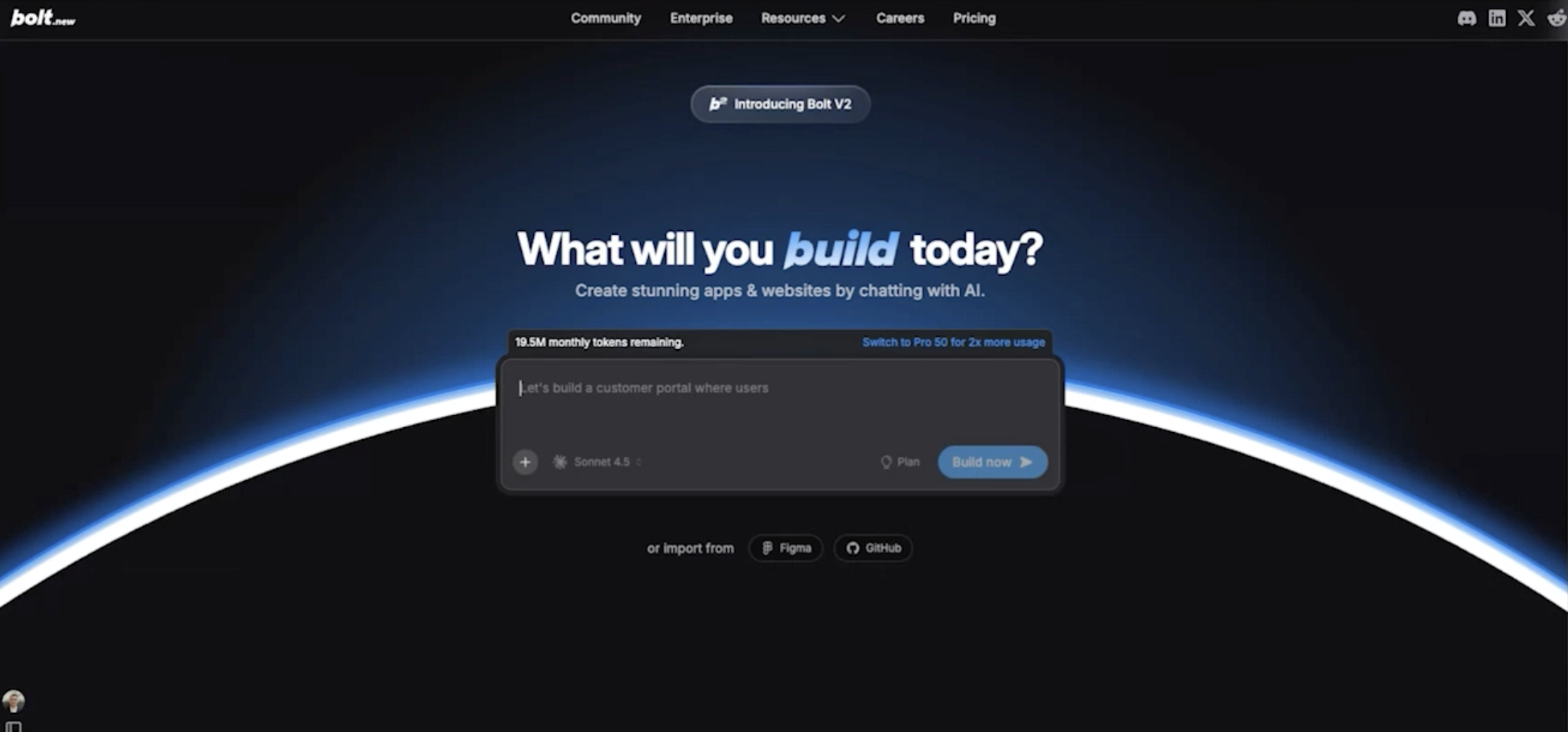
  1. Go to Bolt, Lovable, or any AI prototyping tool
  2. Paste your screenshot into the chat (drag and drop the image, or Cmd+V if it's on your clipboard)
  3. Paste the element code you copied (Cmd+V — it'll look like a wall of code, that's fine)
  4. Paste the styles you copied (same deal — wall of code, don't worry about it)
  5. Add a prompt like this:

Mirror Prompt

I pasted a screenshot of a modal from [product name], along with the code and CSS from Chrome DevTools. Create an accurate replica of this modal. Match the fonts, spacing, and styles exactly. Don't worry about backend logic, databases, or making it functional. This is for prototyping only. I need a clean template I can build on top of.

Copy
  1. Hit enter and let it ruminate

When it finishes, compare the result to your screenshot. It should be close—same fonts, same spacing, same visual hierarchy. If something's off (a button doesn't have rounded corners, the font weight is wrong), most tools have a visual selector—click on the element and tell it what to fix.

If it's way off: Don't wrestle with it. AI is non-deterministic. Sometimes it stutters. Just start a new chat and paste your materials again. "Oftentimes the right answer is just to start over," Alex says. "It probably just stuttered. Don't go wrestle with it trying to fix it."

04. Add the thing

Okay, idea guy. Let it rip.

Now you've got a pixel-perfect copy of the current state. Time to add your idea.

Alex added a hover state that revealed an "Adjust tax collection" button, which opened a new modal where hosts could toggle which taxes to withhold. When you changed the toggles and hit save, the numbers in the original modal updated. That's it. One interaction. But it let stakeholders feel the idea instead of reading about it.

Do this:

  1. Write out what interaction you want to add. Be specific about:
    • What triggers it (hover, click, etc.)
    • What appears (button, modal, dropdown, etc.)
    • What changes when someone uses it
  2. If there's logic involved (calculations, rules, etc.), write that out too. You can even paste in notes from ChatGPT if you've been working through the logic there.
  3. Paste this as a new prompt. Here are two example structures depending on what you're building:

Example A: Adding a New Action

When the user hovers over [element], show a button that says "[button text]". When they click that button, open a new modal that lets them [do the thing]. When they save, [describe what updates]. Store everything locally. Don't worry about databases or production concerns—I'm just trying to get this idea approved.

Copy
Example B: Changing Existing Behavior

Replace the [current element] with a [new element type — dropdown, toggle, input field, etc.]. When the user interacts with it, [describe what should happen]. Show the change immediately in [wherever the result should display]. Keep it simple. No backend, no database. This is a prototype.

Copy
  1. For complex prompts, switch to a stronger model if your tool allows it. Claude Opus or GPT-4 handle multi-step logic better than faster models. It's slower but worth it.
  2. Let it build. Watch the plan it generates—it should roughly match what you asked for.

One interaction is enough to collapse hours of PRD debates into a five-second experience.

05. Send the link + shut up

Your prototype is done.

Finally, now you need to get it in front of the people who can say yes.

Do this:

  1. Find the Share or Deploy option in your tool (usually top right)
  2. Generate a shareable link
  3. Copy it
  4. Send it to your stakeholders with minimal explanation. Something like:

"I've been thinking about how we handle [problem]. Built a quick prototype to show what I mean. Click around—curious what you think."

That's it. Don't write a PRD. Don't schedule a meeting to walk them through it. Don't explain every decision you made. Send the link. Let them click. Let the experience make your argument for you.

When feedback comes back, it'll be concrete. "I liked the toggle but the save button felt buried." "What happens if someone turns off all the taxes?" These are real reactions to a real thing—not abstract comments on a document nobody fully read.

If something's broken or ugly: Fix it and send an updated link. Or start over. "It's pretty easy to just click redo," Alex says. The cost of iteration is near zero. The cost of waiting for consensus on a PRD is months.

The Takeaway

Alignment is the real bottleneck in modern product development. High-fidelity prototypes remove ambiguity faster than documents ever could. AI makes those prototypes cheap enough to use early.

The teams that move fastest decide sooner.

Hire Us As Your Chief AI Officer

We have the muscle—and the reps. Want us to run this exact playbook inside your org? Talk to us today.

Built by builders, trusted by leaders

Stay on the right side 
of history.

Get Started